1. Loading Audio
Three ways to load audio files into Ozen-web
Overview
In this section, you’ll learn how to load audio files into Ozen-web using three different methods:
- Drag and drop (fastest)
- File picker (traditional)
- Microphone recording (create new audio)
Before You Start
Make sure Ozen-web is running in your browser:
- Hosted version
- Local server: http://localhost:5173 (change the port to number to match your server)
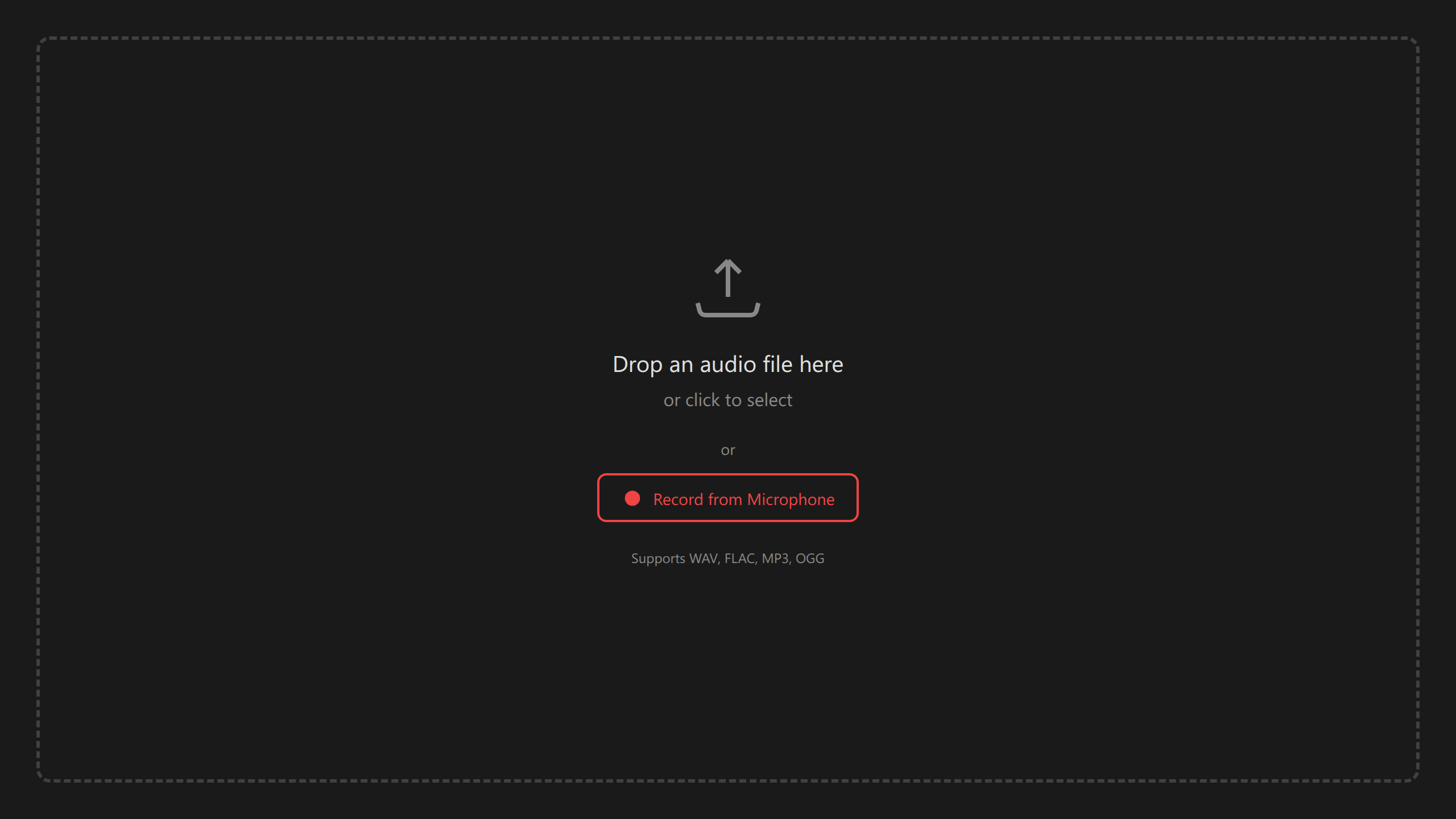
You should see an empty interface with a prominent file drop zone.
Method 1: Drag and Drop
The fastest way to load audio is drag-and-drop:
Find an audio file on your computer (WAV, FLAC, MP3, or OGG format)
Drag the file over the Ozen-web window
The drop zone will highlight with a blue border
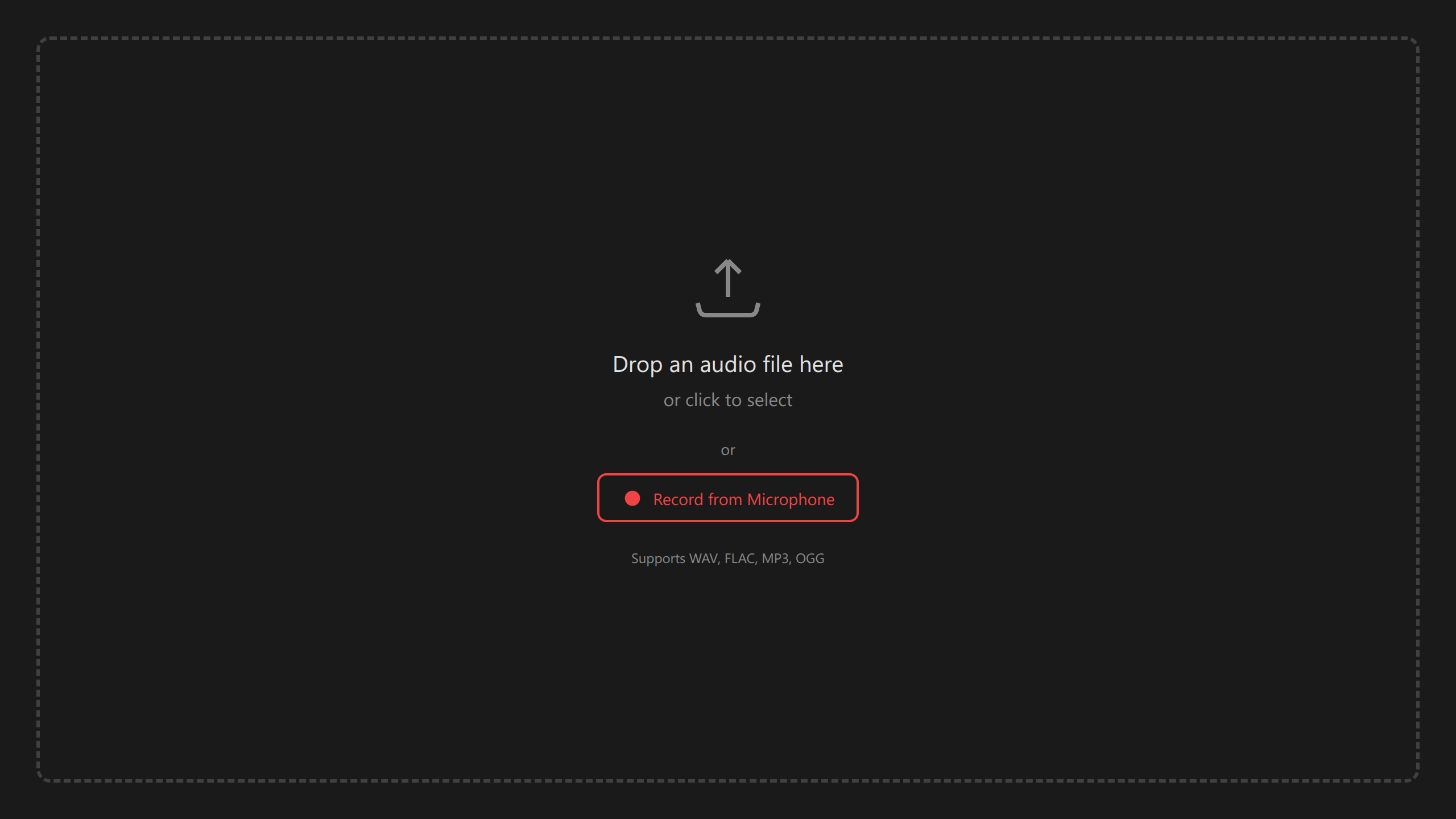
Drag-drop highlighted Release the mouse button
Wait for loading (1-2 seconds)
- Progress indicator appears briefly
- Waveform appears in the display
- Spectrogram loads (or prompts to zoom for long files)
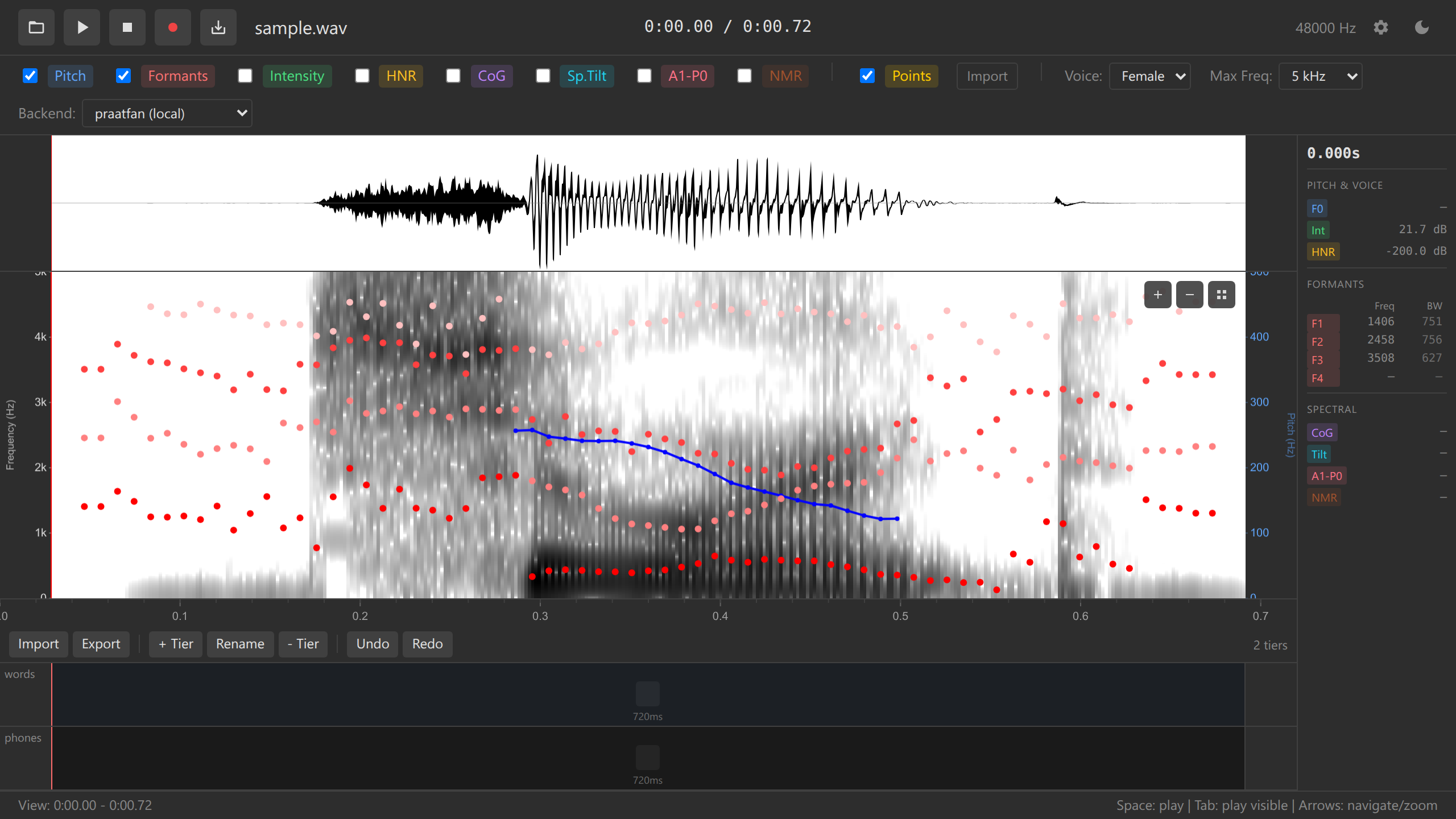
Audio loaded successfully
You can drag files from Finder (Mac), File Explorer (Windows), or Nautilus/Dolphin (Linux).
Method 2: File Picker
If you prefer a traditional file dialog:
Click the “Load Audio” button in the interface (usually top-left or center)
Select your audio file in the file dialog
Click “Open”
Audio loads just like drag-and-drop
The file picker shows only supported formats (WAV, FLAC, MP3, OGG). If your file doesn’t appear, check the format or try “All Files” filter.
Method 3: Microphone Recording
Create new audio directly in the browser:
Click the microphone icon 🎤 (usually in the toolbar)
Allow microphone access when prompted by the browser
Browser microphone permission dialog Click the red record button
Speak into your microphone
- A timer shows recording duration
- Maximum recording time: 60 seconds (configurable)
Click the stop button when finished
The recorded audio loads automatically
Try recording yourself saying a few words that differ only by their vowels (bead, bid, bed, bad) to see clear formant patterns in the spectrogram.
Microphone recording uses your browser’s MediaRecorder API. Quality depends on your microphone and browser settings. For research-grade recordings, use external recording software.
What You Should See
After loading audio successfully, you should see:
- Waveform display showing amplitude over time
- Time axis at the bottom (0.0s, 0.5s, 1.0s, …)
- Filename displayed in the interface
- Spectrogram (for files ≤60s) or “Zoom in for spectrogram” message
Supported Audio Formats
Ozen-web supports most common audio formats via the Web Audio API:
| Format | Extension | Notes |
|---|---|---|
| WAV | .wav |
Recommended, lossless, 16/24-bit PCM |
| FLAC | .flac |
Compressed and lossless |
| MP3 | .mp3 |
Widely supported, lossy compression |
| OGG | .ogg, .oga |
Open lossy compression format, good quality |
For phonetic research, use 16-bit WAV files at 44.1kHz or 48kHz sampling rate for best compatibility and quality.
File Size Limits
While there’s no hard limit, practical constraints apply:
- Small files (< 1 MB, < 30s): Load instantly
- Medium files (1-10 MB, 30-300s): Load in 1-5 seconds
- Large files (> 10 MB, > 300s): May take 10+ seconds; spectrogram computed on-demand when zoomed
Files longer than 60 seconds show waveform immediately but require zooming to trigger spectrogram analysis. See Features: Long Audio Handling for details.
Loading a Different File
To load a new audio file:
- Simply drag another file or click “Load Audio” again
- The previous audio will be replaced (annotations are lost unless exported)
Loading a new file clears all unsaved annotations and data points. Export your work first if needed (see Section 6: Exporting).
Troubleshooting
File won’t load:
- Check the file format (use WAV if unsure)
- Ensure the file isn’t corrupted (try playing in another app)
- Check browser console (F12) for error messages
“Failed to decode audio” error:
- File may be in an unsupported codec
- Convert to WAV using Audacity, FFmpeg, or Praat
Microphone doesn’t work:
- Check browser permissions (Settings → Privacy → Microphone)
- Ensure microphone is connected and working in other apps
- Try using HTTPS (microphone API requires secure context)
File loads but no spectrogram:
- For files >60s, zoom in to trigger analysis
- Check that WASM backend is loaded (see backend selector)
- Try refreshing the page (Ctrl+R)
Practice Exercise
Before moving to the next section, try:
- Load an audio file using drag-and-drop
- Load a different file using the file picker
- Record 5 seconds of speech using the microphone
- Observe the differences in waveform appearance
Challenge: Record yourself saying “hello” three times with different intonations (statement, question, excited). Notice how the pitch contours differ in the waveform.
What’s Next?
Now that you have audio loaded, let’s learn how to navigate and explore it.
Next: 2. Exploring Audio →
Navigation: ← Back to Tutorial Overview | Next: Exploring Audio →