6. Exporting
Save your annotations and data for analysis
Overview
After annotating audio and collecting data points, you’ll want to export your work for:
- Long-term storage (save your annotations)
- Further analysis (statistical analysis in R, Python, Praat)
- Sharing (collaborate with colleagues)
Ozen-web supports three export formats:
- TextGrid (Praat format) — For annotations
- TSV (Tab-Separated Values) — For data points + measurements
- WAV (Audio) — For saving recorded or edited audio
Exporting TextGrids
TextGrid is the standard format for time-aligned annotations, compatible with Praat.
Create some annotations (section 4) if you haven’t already
Click “Export TextGrid” button (usually in toolbar or File menu)
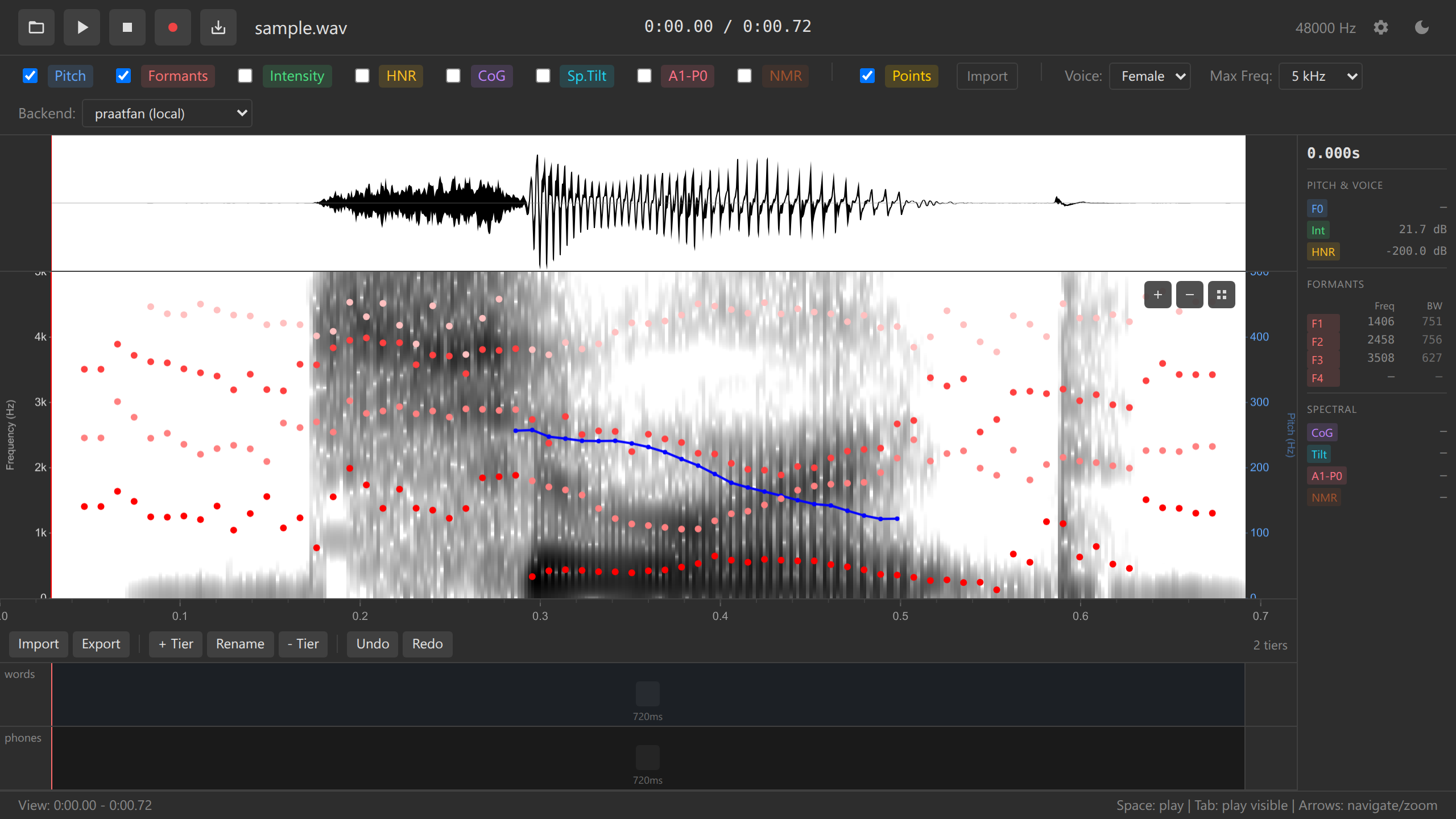
TextGrid export dialog A file download dialog appears (or File System Access API prompt)
Choose a location and filename (e.g.,
my-annotation.TextGrid)Click “Save”
The TextGrid file is saved to your computer
TextGrid File Contents
A TextGrid file contains:
- All annotation tiers (interval and point tiers)
- All boundaries and their time positions
- All interval labels
Example TextGrid content:
File type = "ooTextFile"
Object class = "TextGrid"

xmin = 0
xmax = 2.451
tiers? <exists>
size = 2

item [1]:
    class = "IntervalTier"
    name = "words"
    xmin = 0
    xmax = 2.451
    intervals: size = 3
        intervals [1]:
            xmin = 0
            xmax = 0.523
            text = "hello"
        intervals [2]:
            xmin = 0.523
            xmax = 1.234
            text = "world"
        intervals [3]:
            xmin = 1.234
            xmax = 2.451
            text = ""
Opening TextGrids in Praat
Open Praat
Go to Read → Read from file…
Select your TextGrid file
Open the corresponding audio file
Select both (Shift+click) and choose View & Edit
Your annotations appear in Praat’s editor
Keep audio and TextGrid files in the same directory with matching names (e.g., audio.wav and audio.TextGrid) for easy loading in Praat.
Importing TextGrids
You can also import existing TextGrid files into Ozen-web:
Load an audio file first (section 1)
Click “Import TextGrid” button
Select a TextGrid file
The tiers and annotations appear in Ozen-web
The TextGrid must match the audio duration. If durations don’t match, some annotations may be truncated or extended.
Exporting Data Points (TSV)
TSV (Tab-Separated Values) files are perfect for statistical analysis in R, Python, SPSS, or Excel.
Add some data points (section 5) if you haven’t already
Click “Export Data Points” or “Export TSV” button
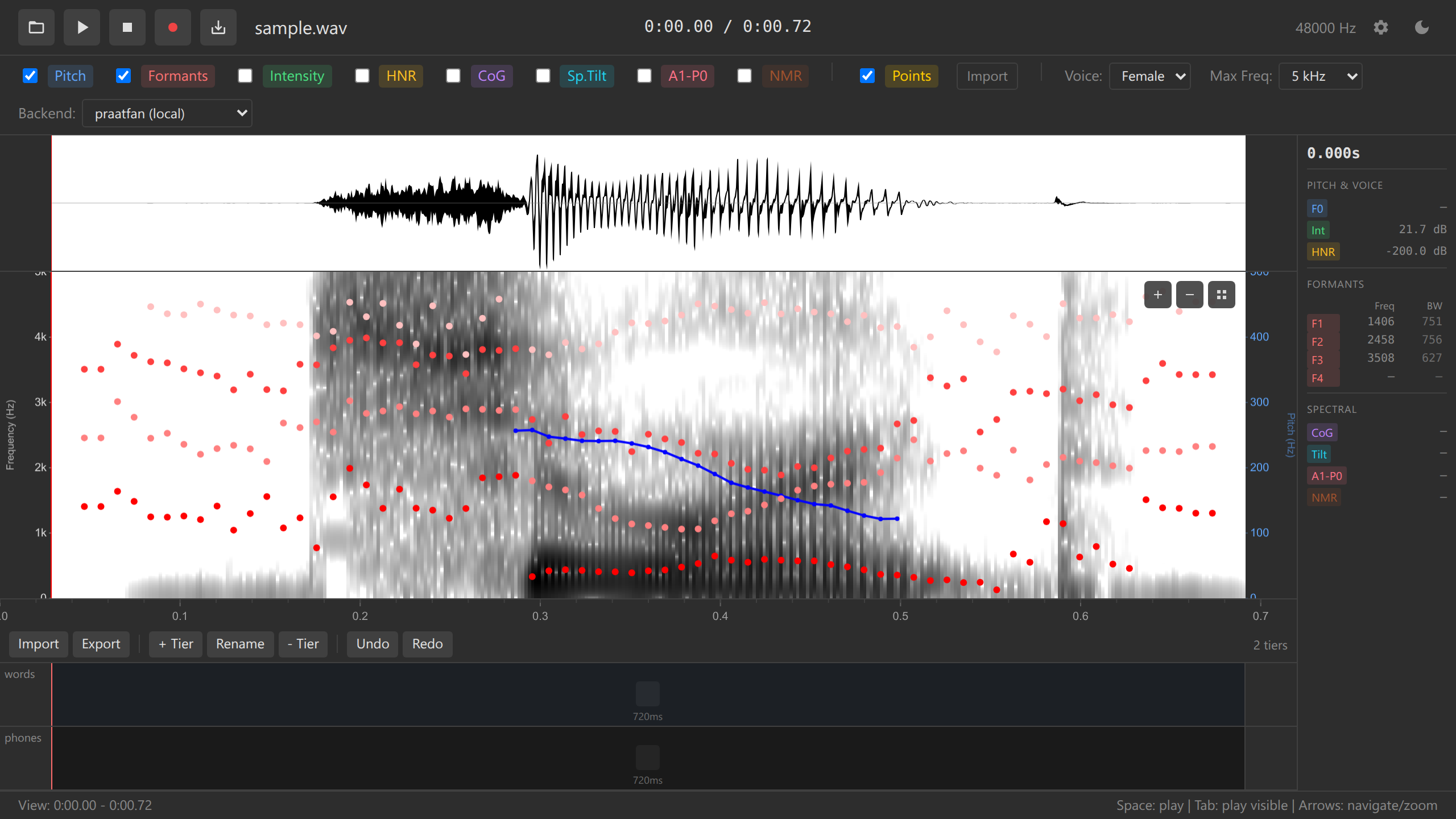
TSV export menu Choose a location and filename (e.g.,
vowel-data.tsv)Click “Save”
The TSV file is saved
TSV File Contents
A TSV file contains one row per data point with columns for:
- time — Time position (seconds)
- frequency — Frequency where you clicked (Hz)
- pitch — Fundamental frequency (Hz)
- intensity — Intensity (dB)
- f1, f2, f3, f4 — Formant frequencies (Hz)
- b1, b2, b3, b4 — Formant bandwidths (Hz)
- hnr — Harmonics-to-Noise Ratio (dB)
- cog — Center of Gravity (Hz)
- spectral_tilt — Spectral tilt (dB/octave)
- a1_p0 — A1-P0 measure
- [tier_name] — One column per annotation tier (labels at that time)
Example TSV:
time    frequency   pitch   intensity   f1  f2  f3  f4  phones  words
0.234   1500    156 72  678 1234    2890    3654    i   see
0.567   1200    234 68  543 987 2567    3234    u   two
0.891   1400    198 71  698 1324    2678    3456    æ   cats
Analyzing TSV Data
In R:
# Read data
data <- read.delim("vowel-data.tsv")

# Plot F1 vs F2
library(ggplot2)
ggplot(data, aes(x = f2, y = f1, label = phones)) +
  geom_text() +
  scale_x_reverse() +
  scale_y_reverse() +
  labs(title = "Vowel Space", x = "F2 (Hz)", y = "F1 (Hz)")
In Python:
import pandas as pd
import matplotlib.pyplot as plt

# Read data
data = pd.read_csv('vowel-data.tsv', sep='\t')

# Plot F1 vs F2
plt.figure(figsize=(8, 6))
for i, row in data.iterrows():
    plt.text(row['f2'], row['f1'], row['phones'])
plt.gca().invert_xaxis()
plt.gca().invert_yaxis()
plt.xlabel('F2 (Hz)')
plt.ylabel('F1 (Hz)')
plt.title('Vowel Space')
plt.show()
In Excel:
- Open Excel
- File → Open → Select TSV file
- Data imports into columns
- Create scatter plot (F1 vs F2)
- Add data labels (vowel symbols)
Try this: Export your data points, open in Excel, and create a simple scatter plot of F1 (y-axis) vs F2 (x-axis). Each point represents a vowel!
Importing Data Points (TSV)
You can also import previously exported TSV files:
Load the same audio file that you used when creating the data points
Click “Import Data Points” or “Import TSV”
Select your TSV file
Data points appear on the spectrogram
TSV import requires matching audio files. If the audio is different, time positions may not align correctly.
Exporting Audio
Save the current audio (useful after recording or trimming):
Click “Export Audio” or “Save Audio” button
Choose format (usually WAV, 16-bit PCM)
Choose location and filename
Click “Save”
Audio is saved as a WAV file
Exported audio is always in WAV format (16-bit PCM, original sample rate). This ensures compatibility with Praat and other analysis software.
File System Access API vs. Downloads
Ozen-web uses two methods for saving files, depending on browser support:
File System Access API:
- Shows native “Save” dialog
- You choose exact location and filename
- Can overwrite existing files
Download API:
- Files save to Downloads folder
- Browser may add numbers (e.g.,
data(1).tsv,data(2).tsv) - You need to move files manually
Recommended Workflow
For a complete research workflow:
Load audio (section 1)
Create annotations with multiple tiers (section 4)
- Words tier
- Phones tier
- Any other tiers needed
Enable acoustic overlays (section 3)
- Pitch, Formants, Intensity
Add data points at measurement locations (section 5)
- Vowel midpoints
- Consonant landmarks
- Pitch points
Export TextGrid for annotations
- Saves all tiers and labels
- Compatible with Praat
Export TSV for acoustic measurements
- Saves all data points with values
- Ready for statistical analysis
Organize your files:
my-project/
├── audio.wav
├── audio.TextGrid
└── data-points.tsv
Export frequently! Browser tabs can close unexpectedly. Save your work every 10-15 minutes.
Batch Processing Multiple Files
For analyzing many files:
Analyze first file (load, annotate, collect data, export)
Load second file
Repeat annotation and data collection
Export each file’s TextGrid and TSV
Combine all TSV files in R or Python:
R:
files <- list.files(pattern = "*.tsv")
data <- do.call(rbind, lapply(files, read.delim))
Python:
import pandas as pd
import glob

files = glob.glob("*.tsv")
data = pd.concat([pd.read_csv(f, sep='\t') for f in files])Ozen-web doesn’t have built-in batch processing. For large corpora, consider using the desktop version ozen or scripting with Praat.
Practice Exercises
- Export and re-import a TextGrid
- Create annotations
- Export TextGrid
- Load a new audio file
- Load the same audio again
- Import the TextGrid
- Verify annotations reappear
- Export data points and open in Excel
- Create 3 data points
- Export TSV
- Open in Excel or Google Sheets
- Verify all columns are present
- Analyze in R or Python (if you know these languages)
- Export TSV with formant data
- Plot F1 vs F2
- Color-code by vowel label
Challenge: Create a complete mini-dataset:
- Record or load 3 short sentences
- Annotate each with a “words” tier
- Add data points on all vowels
- Export 3 TextGrids and 3 TSVs
- Combine TSVs in Excel/R/Python
- Plot a vowel space with all data
Troubleshooting
“Save” button doesn’t appear:
- Check browser permissions (allow file system access)
- Try using a different browser (Chrome/Edge recommended)
File saves to Downloads instead of chosen location:
- Your browser doesn’t support File System Access API
- Manually move files after download
TextGrid won’t open in Praat:
- Ensure the file extension is
.TextGrid(not.txt) - Check that the file isn’t empty (open in text editor)
- Try re-exporting from Ozen-web
TSV columns are misaligned in Excel:
- Ensure file extension is
.tsv(not.txt) - When opening in Excel, choose “Tab” as delimiter
- Or use “Text to Columns” feature after opening
Imported TextGrid doesn’t match audio:
- Verify audio duration matches TextGrid duration
- Check that you’re importing the correct TextGrid for this audio file
Data points export is empty:
- Ensure you’ve added data points (section 5)
- Check that acoustic overlays are enabled
- Verify data points appear visually on the spectrogram
What’s Next?
Congratulations! 🎉 You’ve completed the Ozen-web tutorial. You now know how to:
- ✅ Load audio files
- ✅ Navigate and explore audio
- ✅ View acoustic features
- ✅ Create multi-tier annotations
- ✅ Collect acoustic measurements
- ✅ Export data for analysis
Continue Learning
- Features Documentation — Deep dive into all features
- Keyboard Shortcuts Reference — Speed up your workflow
- Configuration Guide — Customize default settings
- Embedding Guide — Embed Ozen-web in websites or documents
Get Involved
- Report bugs: GitHub Issues
- Request features: GitHub Discussions
- Contribute: Development Guide
Navigation: ← Previous: Data Collection | Tutorial Overview | Features Documentation →